Configuring proration rules for timesheets
Proration rules determine whether a worker receives the full monthly rate or a prorated amount based on the hours recorded in their monthly timesheet.
Steps
To configure proration rules for timesheets, perform the following steps:
-
Sign in to Professional.
-
In the left navigation, go to .
-
Select the Timesheet Rules tab.
-
Select Add (+).
-
In the Create a Rule window, enter a Name and Reference ID, and then select Create.
-
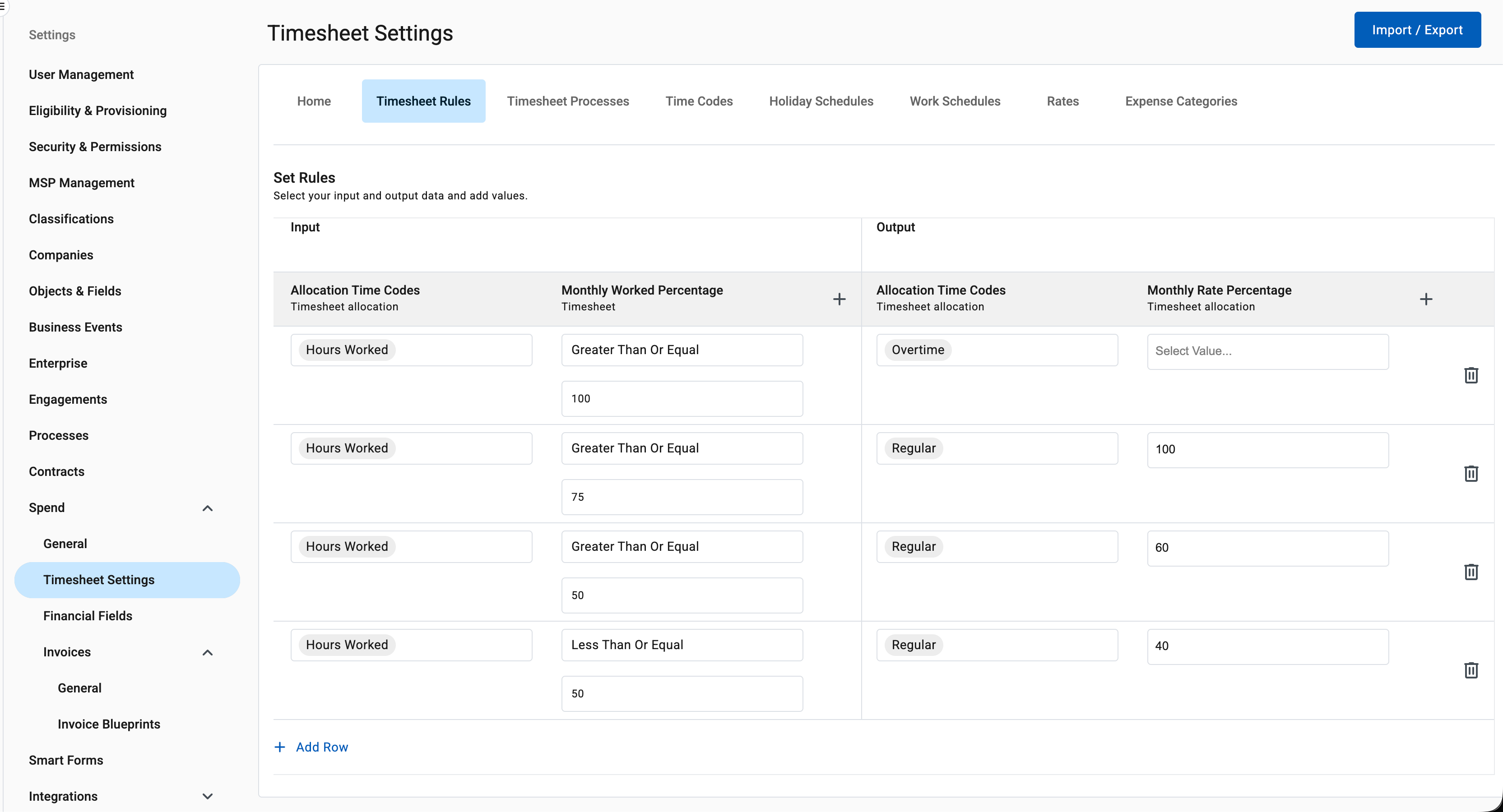
Configure the input and output conditions for the proration rules.
Example
The following configuration determines the percentage of a worker’s monthly rate paid based on the hours recorded in their monthly timesheet, relative to their contracted monthly hours:
-
More than the contracted monthly hours: Overtime
-
At least 75% of the contracted monthly hours: 100% of the agreed monthly rate
-
At least 50% but less than 75% of the contracted monthly hours: 60% of the agreed monthly rate
-
50% or less of the contracted monthly hours: 40% of the agreed monthly rate
| The thresholds in this example are illustrative. Configure the rules according to your organization’s payment and overtime policies. |