Using Permission Visualizer
After you enable Permission Visualizer, permission chips appear on each field in an engagement. These chips show the access level for the current user (signed-in or proxied), allowing you to quickly verify permissions.
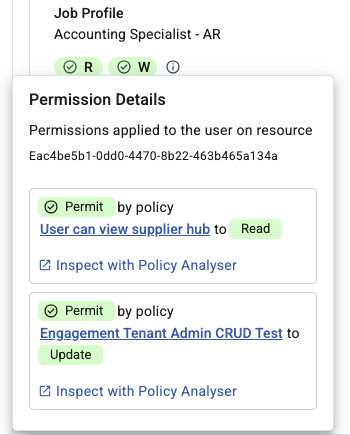
View field permissions
-
Go to the engagement.
-
Select the field you want to analyze.
-
Select the Info (i) icon next to the permission chips.
A Permission Details window opens showing how permissions are applied and which policy controls access to the selected field.
Open the governing policy
-
In the info panel, select the listed policy.
The system opens the policy that defines access for the selected field.
Analyze the policy in detail
-
In the info panel, select Inspect with Policy Analyzer.
Policy Analyzer opens from with the relevant field details already populated.
Find the resource ID
The resource ID identifies the specific resource used to evaluate permissions. It appears as a long alphanumeric string.
-
In the info panel, find the resource ID under Permissions applied to the user on resource.
The resource ID is required to:
-
Verify permission evaluations
-
Troubleshoot access issues
-
Provide accurate information to customer support