Approving or rejecting expenses in the Time & Expenses hub
Follow these steps to review and approve or reject multiple expenses at once from the Time & Expenses hub in Professional. You can filter, select, and take action on multiple expense records in a single workflow.
Before you begin
-
Expenses must be submitted through the Supplier Network or the Talent Experience apps before you can view them in Professional.
Steps
To approve or reject multiple expenses in one action, complete these steps from any supported browser.
-
Log in to Professional.
-
Select Time & Expenses from the left navigation and then, select the Expenses tab. The Expenses page displays.
-
Optional: Adjust your filters to narrow down a selection of expenses by completing these steps:
-
Select All Filters from above the expenses table.
 Figure 1. Expenses filters
The Filters side panel displays.
-
Activate the Pending status and deactivate any other statuses.
-
Use any other filters that may help you narrow your list further.
-
Close the Filters panel.
-
-
Optional: To review the details of an expense record, select the expense ID from the table. The expense Summary side panel displays.
-
Select the expense records you want to process and next, select Approve to authorize the expenses or Reject to disallow them.
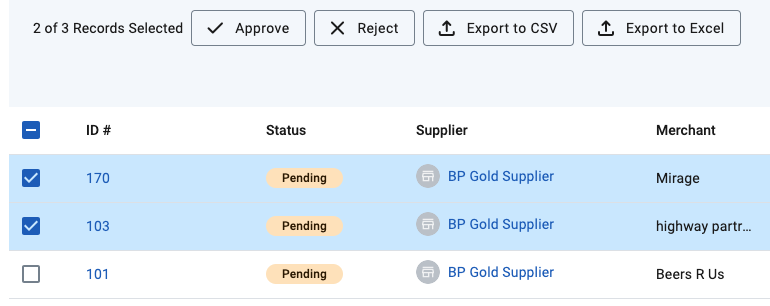 Figure 2. Selecting multiple expenses
After you approve or reject an expense, its status is updated to Approved or Rejected and the changes are reflected in the Supplier Network and Talent Experience apps.