Approving or rejecting expenses in the Tasks area
Follow these steps to review and approve or reject submitted expenses from the Tasks area in Professional. You can view expense details, take action, and update their status directly from your task list.
Before you begin
-
Expenses must be submitted through the Supplier Network or the Talent Experience apps before you can view them in Professional.
Steps
To approve or reject expenses, complete these steps from any supported browser.
-
Log in to Professional.
-
Select Tasks from the left navigation. The Tasks page displays.
-
Review your task list on the left and select a task associated with expense approvals. Depending on how your site is set up, your tasks might be named differently.
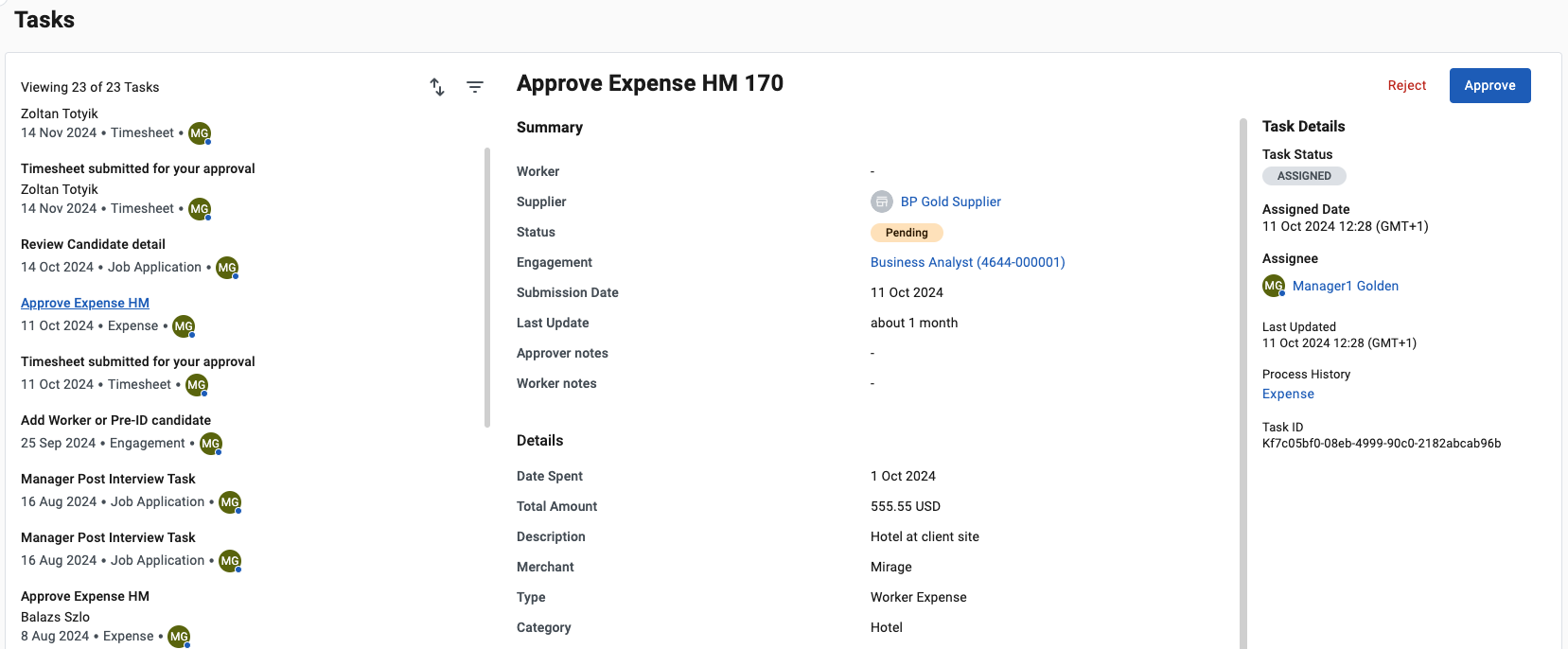 Figure 1. Approving expenses in the Tasks area
 -
Review the details of the submitted expense record.
-
From the upper right, select Approve to authorize an expense or Reject to disallow an expense.
When you reject an expense, you can add a note to the worker to request clarifications or adjustments.
-
Repeat this action for all the expenses in the Tasks list.
After you approve or reject an expense, its status is updated to Approved or Rejected and the changes are reflected in the Supplier Network and Talent Experience apps.