Correcting milestones
Milestones with Approved, Invoice Pending, or Invoiced status are past editing. If the amount on one of these milestones is wrong, start a milestone correction to change the amount. Milestone corrections follow the same pattern as timesheet and expense corrections.
Program office users and hiring managers start milestone corrections in Professional. Suppliers start them in the Supplier Network. Both go to the same approval step. When the approver approves, the project budget and spend on the contract update automatically.
Use the following table to decide how to change a milestone amount:
| Milestone status | What to use |
|---|---|
|
Milestone correction. |
Any other status, such as |
Edit the milestone. No correction is needed. |
Credit milestones and corrected milestones |
Not correctable. The system creates these records during a correction. |
You correct the full milestone, and a correction changes the amount only.
All corrected milestones retain the same ID number and include an additional suffix to indicate the entry was corrected. For example, when milestone 7257 is corrected from $1,000 to $500, 2 new entries are added:
-
A milestone with ID
7257.1, which represents the milestone with the corrected amount. -
A milestone with the ID
7257C, which represents the correction amount. The correction amount is the inverse amount specified on the initial7257milestone.
After approval, 3 records exist, and together they add up to the corrected amount:
-
7257(original): $1,000.00. The original stays unchanged. -
7257C(correction): -$1,000.00. -
7257.1(latest version): $500.00. -
Total: $500.00.
Before you begin
-
The correction processes must exist in your tenant. Milestone corrections come preconfigured for new clients. If you are an existing client, you need to build the correction processes in your tenant. Contact Beeline for help.
-
You must have permission to correct milestones on the contract.
Steps
To correct a milestone, complete these steps from any supported browser.
Correct a milestone in Professional
-
Open the contract and select the Milestones tab.
-
Select the three-dot menu on a milestone with
Approved,Invoice Pending, orInvoicedstatus. -
Select Milestone Correction.
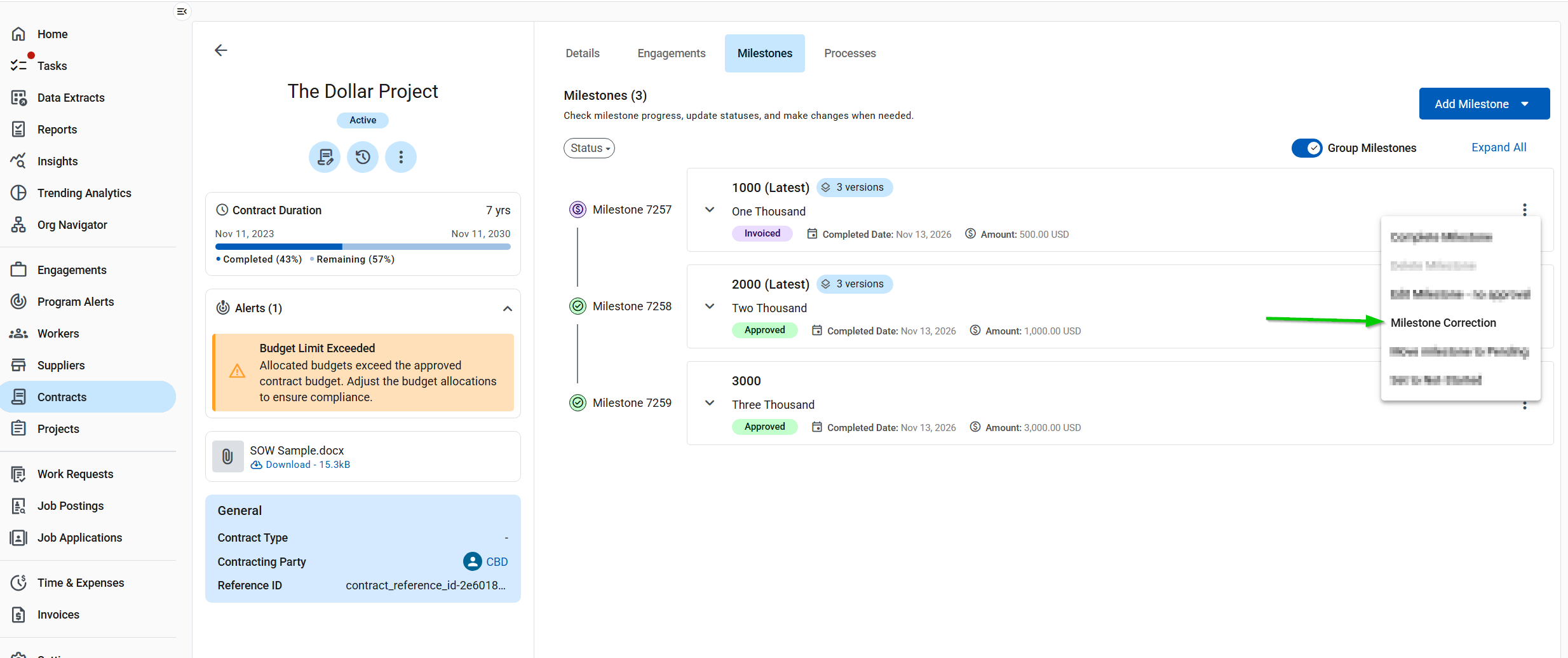 Figure 1. Example of the Milestone Correction action
-
Read the warning, then select Correct. The warning tells you the corrected milestone goes to an approver.
-
Change the Amount and submit. Amount is the only editable field.
Correct a milestone in the Supplier Network
-
Open the contract and select the Milestones tab.
-
Select the three-dot menu on a milestone with
Approved,Invoice Pending, orInvoicedstatus and choose Correct Milestone. -
Read the Milestone Correction dialog and select Correct.
-
Change the Amount and submit. Amount is the only editable field.
What happens after you submit
-
A new milestone with the
.1suffix appears withIn Progressstatus at the corrected amount. The original keeps its status and amount. -
Submit the new milestone for payment. Its status changes to
Submitted. -
The approver reviews the corrected amount in the Approve Submitted Milestone task. On approval, the system creates the correction record (
7257C) and the.1milestone moves toApproved. -
When the milestones are invoiced, the original, the correction, and the new version all show
Invoiced. The invoice picks up the -$1,000 and the $500.
To see all versions together, turn on Group Milestones. One card shows the latest version, and a dropdown opens each version.